Website Forms Not Sending Emails: What to Check
A form can report success while the enquiry never reaches your team. Trace submission, storage, email delivery and follow-up to find the failed stage.
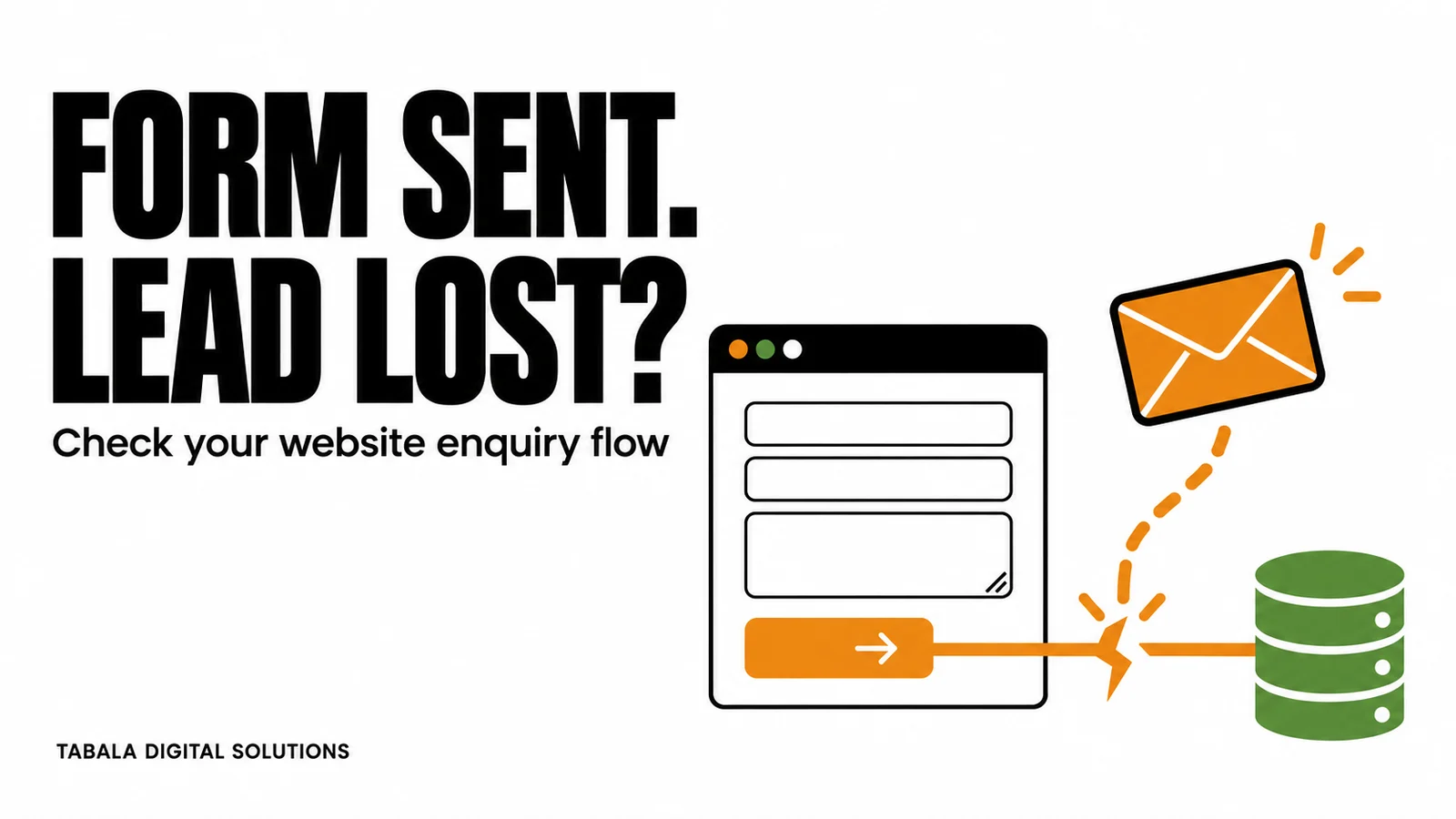
You pay to bring a potential customer to your website. They request a quote, see a success message and wait. Your team receives nothing. The customer assumes you ignored them, while your marketing report may still count a conversion.
A broken enquiry form can quietly separate paid traffic from real sales conversations. Before increasing your budget or rebuilding the website, trace one test submission through the entire journey. Find the point where it stops, fix that point and prove that someone can respond.
This guide helps Kenyan business owners and their website teams diagnose missing form emails, including WordPress notifications, sender authentication, mailbox filtering and sales handover. The same approach works for a laundry in Nairobi, a supplier in Mombasa or a professional services firm serving East Africa.
Quick answer
If your website form is not sending emails, first check whether the submission reached the website and was saved. Then check the notification recipient, sender address, email transport logs, domain authentication and receiving mailbox. Test delivery separately from form submission. A success message alone does not prove that an email arrived.
Key takeaways
- Confirm that the form accepts a valid submission before changing email settings.
- Store enquiries in a controlled system so a missing notification does not erase the lead.
- Use an authorised business sender and put the visitor's email in Reply-To.
- Check delivery evidence rather than assuming an SMTP plugin solved everything.
- Verify mobile submission, staff access and measurement before sending more traffic.
Trace the enquiry before changing settings
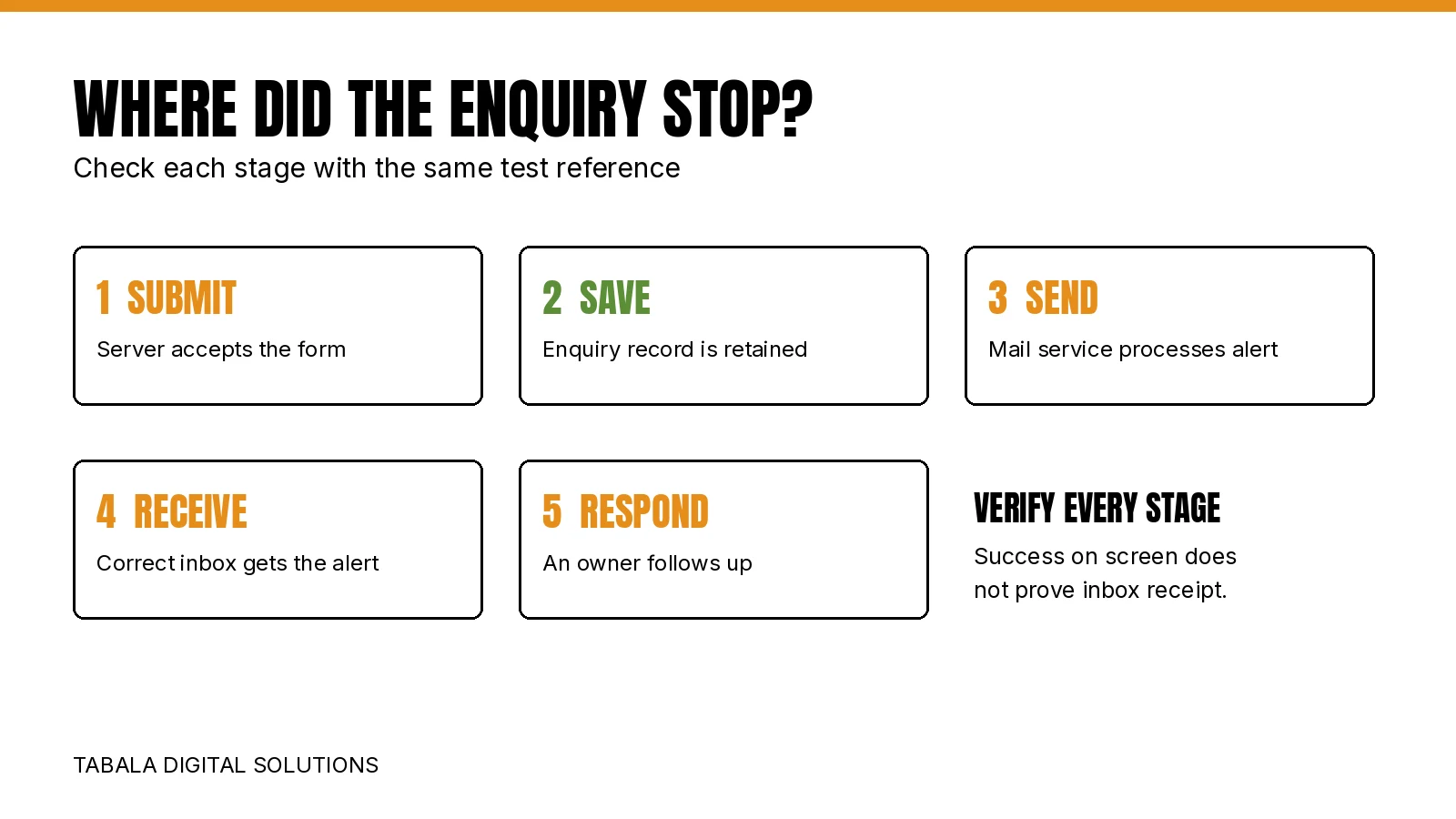
Form submission and email delivery are separate events. A visitor completes the fields, the website validates the request, the application accepts or stores it, an email service processes a notification and a mailbox receives it. Your team then opens the enquiry and follows up.
Different faults can produce the same complaint: “We are not receiving leads.” Changing the recipient address will not repair a blocked form request. Replacing the form design will not fix a full mailbox. Installing a mail plugin will not assign ownership to an unattended inbox.
Start with one controlled test. Use an address you own, clearly label the message as a test and record the time, page URL, device and result. Avoid using a customer's personal details. Give the submission a unique reference such as FORM-TEST-0810-A so the developer and receptionist can identify the same message.
| What you observe | Where to investigate first | Evidence to request |
|---|---|---|
| No response or visible error | Form validation and request handling | Browser error and server response |
| Success message but no saved entry | Submission handler and storage configuration | Application log or record identifier |
| Saved entry but no email attempt | Notification rules and email transport | Notification log and configured recipient |
| Provider rejects the message | Sender identity, credentials and limits | Error code and provider event |
| Provider reports delivery but inbox looks empty | Spam, quarantine, rules and forwarding | Mailbox search and administrator trace |
| Email arrives but nobody follows up | Sales ownership and working hours | Assigned owner and response record |
Check whether the form actually submits
Open the public page in a private browser window. Complete every required field, including consent or verification controls where present. Try a short message without an attachment first. Then repeat on a phone using mobile data. This isolates some browser extensions, logged-in behaviour and connection differences.
Check whether the button responds, validation explains the problem and the success state appears only after the server accepts the request. A form that works for the developer while signed in can still fail for a visitor. Test the version customers actually see, including forms inside popups or embedded booking tools.
If submission fails, ask the developer to inspect the browser network request and the application logs. Common investigation areas include expired request tokens, JavaScript errors, security rules, attachment restrictions and caching. These are possibilities to test, not diagnoses you can make from a screenshot.
Change one setting at a time and repeat the same test. If the issue followed a plugin update, hosting migration or redesign, record that change before rolling anything back. Use a backup and a staging environment for disruptive changes.
A working form also needs sensible fields and clear feedback. Our guide to landing pages for Google Ads in Kenya explains the wider conversion journey. This article concentrates on what happens after someone submits.
Check whether enquiries are stored
Look for the test reference in the website's form entries, booking system or CRM. Storage availability depends on your form product and configuration. Do not assume every WordPress form keeps a copy.
Contact Form 7's documentation on storing submissions states that Contact Form 7 itself does not save submitted messages. It describes Flamingo as an additional storage option. Other form systems may include entries in a paid plan, require an integration or offer a separate submission dashboard.
If there is no stored copy, correct that gap before relying on email again. Choose a storage destination your authorised staff can access, protect it with appropriate permissions and decide how long to retain enquiries. Check that backup and restoration cover those records.
Storage is useful only if someone checks it. During an email outage, assign a person to inspect new entries directly. Once delivery is restored, reconcile the stored submissions with the inbox to find enquiries that need a response. Do not promise recovery of historical submissions that were never retained.
For example, a Kilimani laundry might receive a request for weekly office collection. If the notification disappears but the booking record survives, staff can still call back. If the system kept no record, installing a new email plugin cannot recreate that request.
Check recipient and sender settings
Verify who should receive the notification
Open the form's notification settings and confirm the exact recipient. Look for spelling errors, a former employee's address, outdated conditional rules or a notification disabled for that form. Some websites have several forms with separate recipients, so a working contact form does not prove the quote form works.
Confirm that the destination mailbox exists and can receive ordinary email from an external address. Check storage capacity and permissions. If it is a shared mailbox, verify that the people responsible for enquiries can open it on their actual devices.
Use the business identity in From
The From field identifies the sender. Reply-To tells the recipient where to send a reply. These fields have different jobs. Putting a customer's Gmail address in From can make your website appear to send on behalf of a domain it does not control.
Contact Form 7's mail setup guidance recommends using a sender on the website's domain and setting Reply-To separately. For other systems, follow the email provider's verified sender requirements.
An illustrative configuration is From: Website Enquiries <[email protected]>, To: [email protected], Reply-To: the visitor's validated email. These are example addresses, not ready-to-use settings. Your real sender must be authorised by the service handling the mail.
Ask the developer to validate user-supplied header values rather than inserting raw input. Then send a test and use Reply in the receiving mailbox. Confirm that the reply is addressed to the test visitor, not back to your own notification address.
Check the mail service and delivery logs
If the form entry exists and the notification settings are correct, inspect how the website sends email. It might use the hosting server, authenticated SMTP or an email provider's API. The correct solution depends on that route and the provider's current instructions.
For WordPress, the official wp_mail reference explains that a successful return value does not prove the recipient received the message. Treat a “sent” entry as one piece of evidence, then inspect the provider and receiving mailbox.
Check whether the provider accepted the request, rejected it or deferred delivery. Record the actual error instead of repeatedly resetting passwords. Review the configured server, port, encryption method, credentials, authorised sender and sending limits using that provider's documentation.
An SMTP connection test can succeed while the real form fails. Run both tests: first send the mailer's test message, then submit the public form. Compare the sender, recipient, message contents and provider events. If the form uses a separate integration, the plugin's test may not exercise that integration at all.
Keep credentials in the application's protected configuration. Do not put passwords or API keys in screenshots, article code or support messages. Share only the information needed to investigate the failure, and redact personal data from logs.
Check SPF DKIM and DMARC
Domain authentication helps the receiving service assess whether a message is authorised. SPF identifies permitted sending infrastructure. DKIM signs messages so receivers can check the signing domain. DMARC connects authentication to the visible From domain and publishes handling and reporting instructions.
Google's current email sender guidelines require SPF or DKIM for all senders to personal Gmail accounts and SPF, DKIM and DMARC for bulk senders. Google recommends setting up all three to improve delivery. Authentication reduces one source of failure; it does not guarantee inbox placement.
Ask whoever manages DNS to check the records for the actual provider sending the website notifications. Paying for Google Workspace does not automatically authenticate messages sent through a separate hosting server. Follow each provider's verified configuration and account for legitimate existing senders before changing records.
Inspect a received test message's authentication results. If no message arrives, use provider events or a receiving administrator's trace. Avoid copying a generic DNS record from a tutorial, because it may authorise the wrong infrastructure or interfere with other business email.
Check spam filtering and mailbox rules
Search the entire receiving mailbox for the test reference, sender and subject. Check spam or junk, archived folders and deleted messages. Where an organisation uses quarantine, ask the email administrator to inspect it.
Review automatic rules and forwarding. A notification might arrive correctly and then move into a folder nobody watches. An old rule could forward it to a former employee. Test the intended shared mailbox directly before treating the forwarding chain as the primary route.
Use two controlled destinations when diagnosing delivery, such as a business mailbox and an address on a different provider. Different results help narrow the investigation, but do not prove the setup will work everywhere. Recheck the actual production destination before closing the task.
Avoid weakening spam controls across the whole organisation to rescue one notification. Correct the sender and routing issue, then test a targeted change with the administrator. Keep useful subject lines, such as the service requested and a reference, so staff can locate messages without exposing unnecessary personal details.
Check what marketing counts as a lead
A click on Submit can happen even when validation fails. A thank-you page can load while email delivery fails. Separate those events in your reporting and reconcile them with accepted submissions.
Google documents the GA4 generate_lead event for a lead generated through an interaction such as an enquiry. Your implementation should trigger from a confirmed acceptance state, not simply from the button click. Email delivery and lead quality still need their own operational checks.
Our Google Ads conversion tracking checklist explains the wider measurement system. For a form outage, compare the accepted submission count with stored records, notifications and follow-up outcomes. Exclude identifiable internal tests from business performance reporting where your setup allows it.
Suppose a business spends KES 12,000 and records 20 accepted enquiries. If only 12 notifications reach staff, the apparent cost per enquiry is KES 600, while the cost per visible enquiry is KES 1,000. These are hypothetical figures, not Tabala results or Kenyan benchmarks. They show why a delivery problem can distort a commercial decision.
If you suspect this gap, investigate before scaling. A Google Ads audit can help review campaign measurement, while delivery troubleshooting requires the website and email records. A dashboard alone cannot reconstruct missing enquiries.
Verify the repair before closing the task
Define success as a customer being able to submit, a recoverable record appearing and the responsible team receiving enough information to respond. Test the actual production form after publishing the fix, including its mobile version.
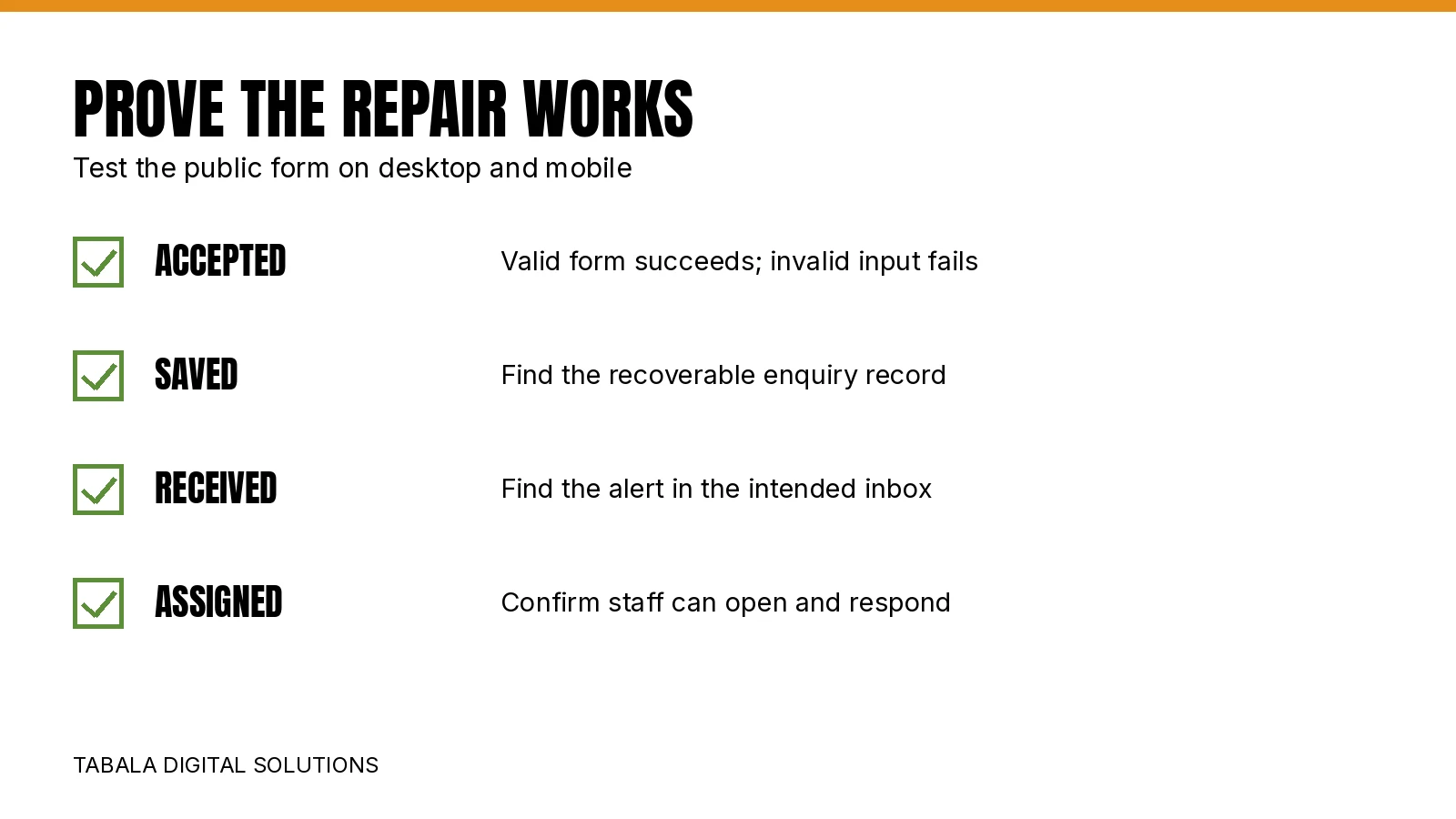
Practical verification checklist
- Submit a valid test from the public page on desktop and mobile.
- Try an invalid required field and confirm that it explains the error without reporting success.
- Find the accepted test in the submission store or CRM.
- Find its notification at the intended production destination.
- Confirm Reply-To, readable content and the requested service.
- Check that the analytics event occurs once for the accepted test and does not fire on rejected input.
- Confirm the assigned staff member can access the record and respond.
- Remove unnecessary test data and record the configuration change.
Repeat a controlled test after changes to hosting, DNS, form plugins, email providers or website caching. Choose a routine testing frequency based on how much your business relies on the form. Also inspect pending enquiries during staff absence and out-of-hours periods.
Form usability is part of that check. Our guide to mobile website usability and conversions covers the wider experience. For a phone visitor, a working email service offers little value if a required field is hidden behind the keyboard.
When to bring in website support
Bring in the developer when valid submissions fail, accepted enquiries have no retained record or logs show application errors. Involve the email provider or administrator when messages leave the website but fail authentication, delivery or mailbox routing. Give both parties the same test reference and timeline.
Request a short completion report with the fault found, settings changed, test evidence and ongoing owner. “Plugin installed” is an action, not a complete outcome. Ask whether older missed enquiries can be recovered and what evidence supports that answer.
Tabala Digital Solutions' website development services in Nairobi support enquiry journeys alongside website performance. Start with the 360 Digital Growth Diagnostic to identify where your marketing journey needs closer review. Mention the form-delivery problem when requesting follow-up, because an automated diagnostic cannot prove that a specific notification reached your mailbox.
Frequently asked questions
The form may have accepted the request or handed a message to a mail service. That does not prove inbox receipt. Trace the saved submission, sending log, provider event and receiving mailbox separately.
It may resolve an email transport problem when correctly configured. It will not repair a failed form request, a wrong recipient, missing submission storage or an unattended mailbox. Test the public form after installation.
Use an authorised business sender that meets your provider's requirements. Put the visitor's validated address in Reply-To so staff can respond without making the website impersonate the visitor's domain.
Possibly, if the website, CRM or another authorised system retained them. Check entries and relevant logs. If nothing saved the submission, a later configuration fix cannot recreate its contents.
If the affected form is the only working enquiry route, pause or reduce traffic to it until verified. If another route works, consider directing visitors there and measuring it separately. Make the decision from confirmed functionality and business priorities.
A valid public submission creates a recoverable record, reaches the intended staff workflow and allows a response. Verify that journey on desktop and mobile and confirm that rejected input does not count as a successful lead.
Summary
Find the earliest failed stage: submission, storage, notification, delivery or follow-up. Repair that stage and verify the whole journey. Keep a stored record and a named owner so an email problem does not quietly become a lost customer.
Need help identifying the gap? Contact Tabala Digital Solutions about your website enquiry flow. Share the affected page, the time of a controlled test and what happened. Never share passwords in the enquiry.
Accelerate Your Revenue
While Revenue Intelligence builds long-term authority, Google Ads delivers immediate, high-intent traffic. Combine both for maximum market dominance.

Strategist Profile
Abala Tom
Digital systems strategist specializing in high-performance SEO, Google Ads, and conversion optimization. Mission: to replace marketing 'guesswork' with predictable revenue systems.